tapocamlogin.com

tapo camera firmware update

How to Update Tapo Camera Firmware: A Simple Guide

To update your Tapo camera firmware, open the Tapo app, select your camera, tap the Settings gear icon and choose Firmware Update. Follow the on-screen instructions if an update is available. 

You can also check Me > Firmware Update in the app. Keep the camera powered on and connected throughout the update. Menu names and automatic-update options may vary by model and app version.

Keeping your Tapo camera firmware up to date can help improve device stability, add supported features and address software or security issues. However, many users are unsure where to find the update option or what to do when an update fails.

If your Tapo camera is offline, the update option is missing or the firmware installation gets stuck, the right troubleshooting steps can help you avoid unnecessary resets.

This guide explains how to update Tapo camera firmware, check for available updates, troubleshoot common errors and confirm that the process has completed successfully.

Independent support disclaimer: This article is published by an independent troubleshooting website. We are not affiliated with, endorsed by or the official support provider for TP-Link or Tapo.

Why Should You Update Your Tapo Camera Firmware?

Firmware is the software built into your camera that controls its operation. Manufacturers may release firmware updates to improve stability, address known issues, strengthen security, or introduce features supported by a particular model.

Updating can be useful if your camera has connection problems, behaves unexpectedly, or needs a fix described in the release notes. However, a firmware update is not guaranteed to resolve every camera issue.

Before installing an update, check the release information and make sure your camera is connected and working well enough to complete the process.
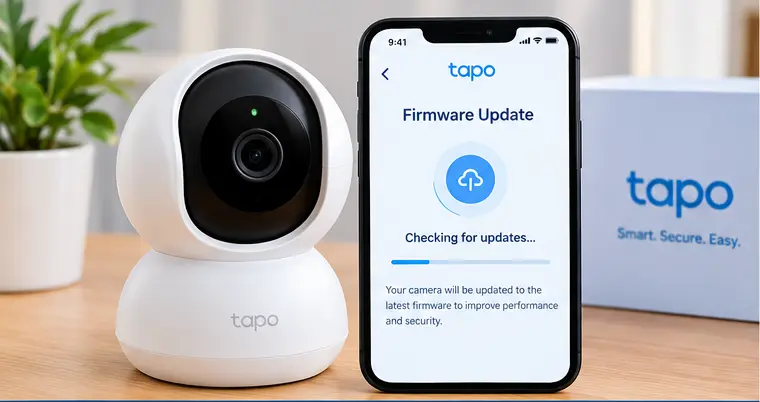
Checking for a firmware update for a Tapo security camera

Before Updating Your Tapo Camera

A few quick checks can help prevent interruptions during installation.

  • Check the camera’s power: Make sure the camera has a stable power supply. For a battery-powered model, check the battery level and follow its charging instructions.
  • Check the internet connection: The camera should be connected to its network and accessible through the Tapo app.
  • Update the Tapo app: Install any available app update through your phone’s official app store.
  • Sign in to your account: Make sure you can access and control the camera in the correct Tapo account.
  • Check the model: Firmware availability and features vary by model and hardware version.
  • Allow enough time: Do not begin an update if you will need to unplug or move the camera immediately afterward.

Firmware Update Preparation Checklist

What to check

Why it matters

Recommended action

Camera power

An interruption can disrupt installation

Keep the camera powered on

Wi-Fi connection

The app needs to communicate with the device

Check that the camera is online

Tapo app

Menu options may differ by version

Install available app updates

Model and hardware version

Firmware is not universal across all models

Verify the exact device on the official support page

Update release notes

Helps you understand the changes

Read the available update information before proceeding

Method 1: Update Tapo Camera Firmware Through Device Settings

This is the main method described in TP-Link’s official instructions for supported Tapo devices.

Step 1: Open the Tapo App

Launch the Tapo app on your smartphone and sign in if needed.

On the Home screen, find the camera you want to update. If you have multiple Tapo devices, double-check the model or device name before continuing.

Step 2: Open the Camera Settings

Tap the camera’s device card to open its control panel.

Next, tap the Settings gear icon, usually located in the top-right corner. This opens the camera’s device settings.

The exact screen layout may vary depending on your app version and camera model.

Step 3: Select Firmware Update

Look for Firmware Update in the settings menu and tap it.

The app should check whether an update is available for your camera. Depending on the device and current firmware, you may see an available update, a prompt to begin installation or a message that the firmware is already up to date.

Step 4: Start the Update

If an update is available, review any release notes shown in the app and follow the instructions to start it.

During installation:

  • Keep the camera powered on.
  • Do not unplug the camera.
  • Avoid resetting the camera.
  • Keep the network connection stable.
  • Wait for the update and any required restart to finish.

The camera may temporarily become unavailable in the app while the firmware is being installed or the device restarts. This does not necessarily mean the update has failed.

Step 5: Confirm the Update

When the process finishes, return to the camera’s device page and check its status.

Confirm that the camera is online and that the live view loads. If the app displays the firmware version, compare it with the version shown in the update information.

For the official step-by-step instructions, see TP-Link’s guide to updating Tapo and Kasa device firmware.
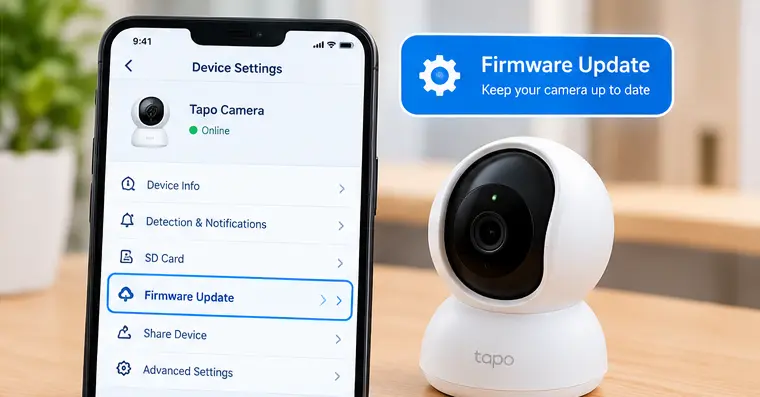
Opening the firmware update option in the tapo app

Method 2: Check for Updates From the Tapo App's Me Menu

You can also check for firmware updates from the app’s central firmware page.

  • Open the Tapo app.
  • Go to Me or your profile menu.
  • Select Firmware Update.
  • Review the devices and update information shown.
  • Follow the on-screen instructions for any available update.

The location of the Me or profile button can vary. Depending on the app version, it may appear at the bottom-right or top-left of the screen. This method is useful if you want to check firmware status across supported devices without opening each camera’s individual settings.

Note : that a new firmware version may not appear immediately for every device. TP-Link releases some updates gradually, so two cameras of the same model may receive an update at different times.

What If the Tapo Camera Has No Firmware Update Option?

If you cannot find the Firmware Update option, do not assume that your camera is defective.

Possible explanations include:

  • The camera’s firmware is already up to date.
  • The app version uses a different menu layout.
  • Your camera is offline or cannot be reached.
  • The model does not currently have an available update.
  • The update is being rolled out gradually.
  • You are checking a different device or account than intended.
  • Try opening the camera’s own Settings page first. If the option is still missing, check Me > Firmware Update.

You can also visit the official TP-Link support page for your Tapo camera, select the correct model and hardware version and review its documentation and firmware release notes. Do not download a firmware file for a different camera model or attempt an unofficial update method.

Common Tapo Camera Firmware Update Problems

The following table explains common symptoms and what to try before contacting support.

Problem

Possible cause

What to do

Update option is missing

Different app layout or no available update

Check both update locations and the model’s support page

Firmware update fails

Unstable connection or temporary device issue

Restart the camera and router, then retry

Camera goes offline during update

The device is restarting or the update was interrupted

Wait first; do not repeatedly unplug or reset it

Update is taking longer than expected

Slow connection or device restart

Allow more time and check the app for status changes

One camera has an update but another does not

Gradual firmware rollout or different hardware versions

Check each camera’s exact model and hardware version

Camera behaves abnormally after updating

Update may not have completed correctly or another issue exists

Check the device status and follow official recovery guidance

How to Fix a Tapo Camera Firmware Update That Fails

If the update fails, work through these steps in order. Avoid factory-resetting the camera as your first response.

Fix 1: Check the Camera’s Network Connection

Open the Tapo app and confirm whether the camera is online.

If it is offline, check your Wi-Fi router and internet connection. Make sure the camera has a stable signal. If practical, move the camera closer to the router temporarily, following the device’s installation and safety instructions.

For cameras that communicate through a hub, check the hub’s connection and follow the manufacturer’s placement guidance. If Tapo camera keeps going offline then you can check our blog on it.

Fix 2: Restart the Camera and Router

A temporary network or device issue can sometimes prevent the update from completing.

  • Close the Tapo app.
  • Restart the router using its normal procedure.
  • Restart the camera only if its design and instructions allow it.
  • Wait for the camera to reconnect.
  • Open the app and try checking for firmware again.

Do not interrupt an update that is visibly in progress. If you are unsure whether installation has finished, allow additional time and consult the model’s support guidance before cycling the power.

Fix 3: Update the Tapo App

Open your phone’s official app store and check whether an update is available for the Tapo app.

Install it if needed, reopen the app, sign in and check the camera’s firmware page again. Menu placement and supported functions can differ between app versions.

Fix 4: Check Whether the Update Has Reached Your Model

Firmware releases may be rolled out gradually. Even if an update has appeared on one Tapo camera, it may not yet be available on another device.

Check the exact camera model and hardware version on the official TP-Link support page. Review the firmware release notes and available update information.

Do not assume that the newest firmware listed for a similar model is compatible with your camera.

Fix 5: Improve the Connection Before Retrying

If the update repeatedly fails because of connectivity, improve the camera’s connection before trying again.

  • Move the camera closer to the router if possible.
  • Check whether other devices have a stable internet connection.
  • Reduce obstacles or interference where practical.
  • Restart the router if the network appears unstable.
  • For hub-based devices, follow the recommended distance and connection guidance.

TP-Link’s firmware update troubleshooting guide recommends restarting the router and smart device and checking the network connection. It also discusses using a mobile hotspot in some troubleshooting situations. Only try an alternative network if it is compatible with your camera and you understand how to reconnect it afterward.

If still Tapo camera not connecting to Wi-Fi then check our detailed blog on it.

Fix 6: Follow Official Recovery Guidance if the Camera Stops Responding

If the camera becomes unresponsive after a firmware update, avoid repeatedly unplugging it, pressing reset or attempting an unofficial downgrade.

First, allow time for the device to finish restarting. Then check whether it appears in the app and consult the official support information for your exact model.

If the camera remains unresponsive, use the manufacturer’s recovery instructions or contact support. Recovery procedures vary and not every Tapo camera supports the same method.
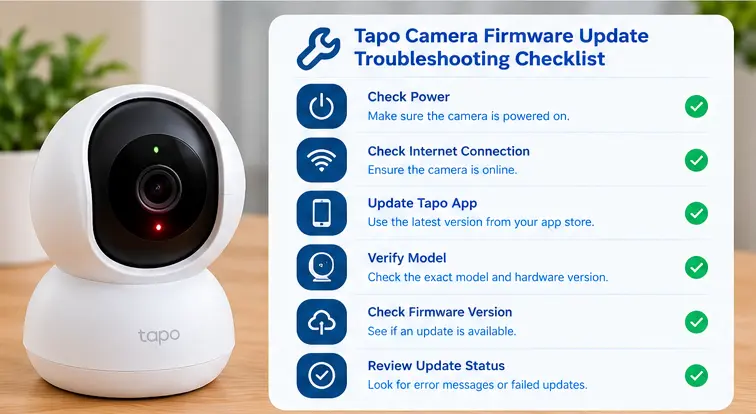
troubleshooting tapo camera firmware update

How to Enable Automatic Firmware Updates

Some Tapo models support automatic firmware updates. If the option is available, you can configure it through the camera’s settings.

  • Open the Tapo app.
  • Select your camera.
  • Tap the Settings gear icon.
  • Open Firmware Update.
  • Look for Auto Update.
  • Enable it and choose a schedule if the app offers one.

The Auto Update option is not available on every model. If you cannot find it, check your camera’s manual and app version rather than assuming something is wrong.

Automatic updates can reduce the need to check manually, but it is still useful to review firmware release notes and confirm that your device remains online.

If Tapo camera firmware update failed then check our troubleshooting blog.

Quick Checklist Before You Contact Support

Before asking for help, review the following:

  • The camera is powered on.
  • The camera is online in the Tapo app.
  • The Tapo app is up to date.
  • You checked both firmware update locations.
  • You confirmed the correct camera model and hardware version.
  • The network is stable.
  • You allowed the camera enough time to complete installation and restart.
  • You avoided unplugging the device during an active update.
  • You noted any error message or unusual LED behavior.

When Should You Contact TP-Link Support?

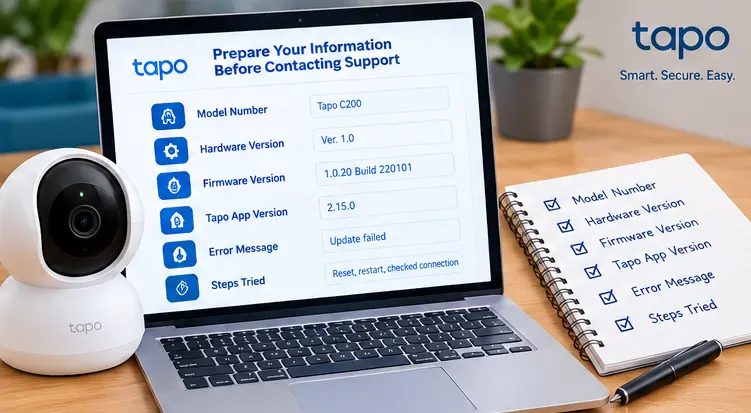
Contact TP-Link support if the camera remains unresponsive after an update, firmware installation repeatedly fails despite a stable connection or the app displays an error that the standard troubleshooting steps do not resolve. Prepare the details below so support can identify the problem more quickly.

Information to prepare

Why it helps

Camera model and hardware version

Identifies the correct firmware and recovery guidance

Current firmware version

Helps establish the device’s update status

Tapo app version

Helps identify possible app-related differences

Error message or screenshot

Shows where the update process failed

Camera connection status

Helps distinguish a network issue from an update issue

Steps already attempted

Prevents repeating the same troubleshooting steps

You can begin with the TP-Link Support website or the Tapo camera download and support page. Choose your exact model to find manuals, firmware information, and available support options.
Tapo camera firmware

Frequently Asked Questions

How do I update my Tapo camera firmware?

Open the Tapo app, select your camera, tap Settings and choose Firmware Update. Follow the on-screen instructions if an update is available. You can also check Me > Firmware Update.

TP-Link’s standard Tapo device update process uses the Tapo app. Do not assume that downloading a firmware file and installing it manually is supported for your model. Follow the official instructions for your exact device.

The duration depends on the camera, network and update. Allow the process to finish and wait for any restart. Do not unplug the camera just because it temporarily disappears from the app.

The camera may already have the latest available firmware, the update may not have reached your device yet or the menu layout may be different. Check both the camera’s Settings page and the app’s Me > Firmware Update page.

Common causes include an unstable Wi-Fi connection, temporary device problems or an update that has not completed successfully. Check the connection, restart the router and camera when safe, update the app and retry.

Automatic updates are a supported option on some Tapo models. If the feature is available, enable it through the camera’s Firmware Update settings and follow the app’s instructions.

Final Thoughts

Updating your Tapo camera firmware is usually straightforward when the device is online and the update is available. Open the camera’s settings in the Tapo app, select Firmware Update and follow the on-screen instructions. You can also check the app’s central firmware update page.

If the update fails, start with the network connection, power supply, app version and model-specific firmware information. Keep the camera powered on during installation and do not attempt an unsupported manual update or downgrade.

For persistent problems, consult the official TP-Link support information for your exact camera model. These checks can help you update more safely and avoid unnecessary resets.