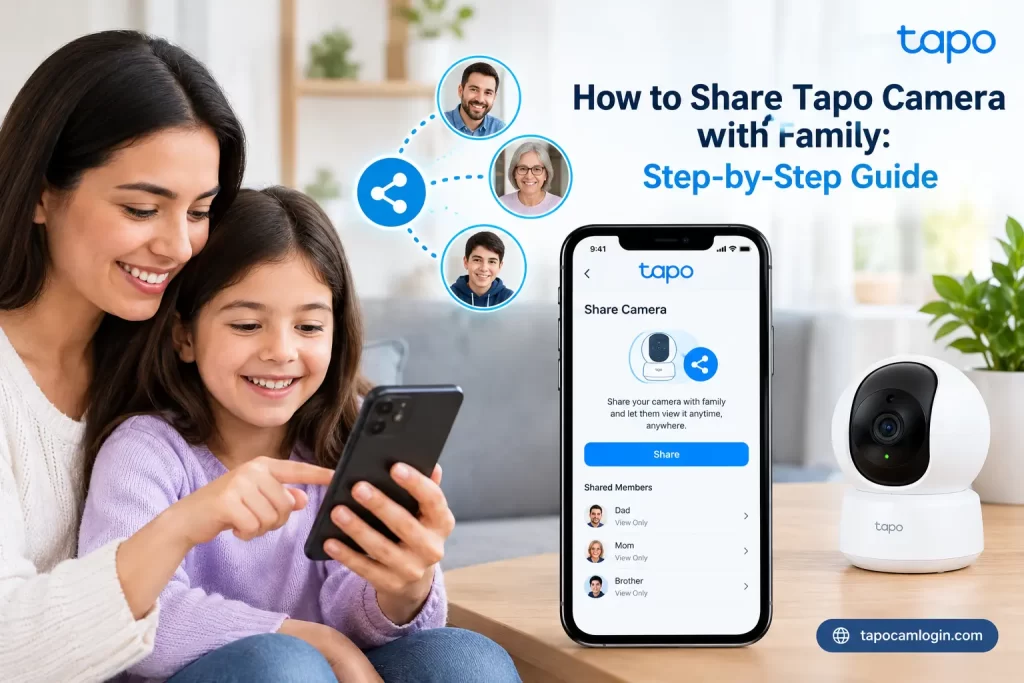
How to Share Tapo Camera with Family: Step-by-Step Guide
You can share a Tapo camera with family through the Tapo app without giving them your main Tapo login. Create a separate TP-Link ID for the family member, send a Device Sharing invitation and choose the access level you want.
A Tapo camera is more useful when your family can access it too.
For example, you may install a Tapo camera to watch your baby, check on an older family member, monitor your front door or keep an eye on your pets. In these situations, you may want your spouse, parents, children or another trusted person to view the camera from their own phone.
The good news is that you do not need to give them your Tapo account password.
The Tapo app has a Device Sharing feature. It lets the camera owner invite another TP-Link account. With the newer Device Sharing 2.0, the owner can also choose different permission levels.
In this guide, you will learn how to share Tapo camera with family, how Tapo camera family sharing works, what shared users can do, how to remove someone and what to try if sharing does not work.
Can You Share a Tapo Camera With Family Members?
Yes. You can share a Tapo camera with family members through the Tapo app. The person receiving access needs their own TP-Link ID. You then send them an invitation from the owner’s Tapo account. This is better than sharing your username and password because each family member can use their own account.
TP-Link currently states that Tapo cameras, doorbells and robot vacuums can be shared with up to five TP-Link accounts. The exact features and limits can depend on the device and the sharing system available on your account.
|
Tapo Camera Sharing Option |
What it means |
|
Device Sharing |
Share the camera with another TP-Link account |
|
Individual device sharing |
Share only one camera |
|
Home sharing |
Share multiple supported devices in a Home |
|
Live View Only |
Limited camera access |
|
Basic |
Regular family-user access |
|
Advanced |
Wider access to camera features and settings |
If you want your family member to use the camera from another phone, use Tapo camera sharing instead of giving them your account password.
What You Need Before Sharing a Tapo Camera
Before you start, check a few things. The camera should already be added to your Tapo account. Your Tapo app should also be reasonably up to date. The family member should have their own TP-Link ID. They can create one in the Tapo app.
Here is a simple checklist:
|
Requirement |
Owner |
Family member |
|
Tapo app |
Required |
Required |
|
TP-Link ID |
Required |
Required |
|
Camera already configured |
Required |
Not required |
|
Internet connection |
Required |
Required |
|
Latest app version |
Recommended |
Recommended |
|
Camera sharing support |
Required |
— |
TP-Link recommends keeping the Tapo app and device firmware updated. It also notes that Device Sharing 2.0 availability can vary because the feature is being rolled out gradually.
If you are having trouble signing in, check our Tapo app login guide before trying to share the camera.
How to Share Tapo Camera with Family
The basic process is simple.
Step 1: Ask Your Family Member to Create a TP-Link ID
The family member needs their own account. Ask them to install the Tapo app on their phone. They should tap Sign Up and create a TP-Link ID.
They should then log in to the Tapo app. Do not use your own account on their phone if you want separate access.
Step 2: Open the Tapo App
Open the Tapo app using the account that owns the camera. This is important.
Only the owner account can normally manage sharing. A person who has received shared access cannot simply share that camera with another person.
If you cannot remember your credentials, you may need to check your Tapo camera login details first.
Step 3: Select the Camera You Want to Share
There are different ways to reach the sharing option depending on your app version.
One common method is:
- Tapo app → Home → press and hold the camera → Share
You can also go through:
- Tapo app → Me → Device Sharing
For cameras, TP-Link also provides a route through the camera’s device settings:
- Home → Camera → Settings → Share Device/Device Sharing
The exact button location can change with app versions.
Step 4: Enter the Family Member’s TP-Link ID
Enter the family member’s TP-Link ID.
Depending on the version and supported options, this may be an email address or another supported account identifier.
Check the account carefully before sending the invitation.
A simple mistake in the email address can send the invitation to the wrong account.
screenshot of this step
Step 5: Choose Camera Permissions
If your account has Device Sharing 2.0, you may see different permission levels. For camera sharing, TP-Link currently lists:
- Live View Only
- Basic
- Advanced
The right choice depends on what the person needs.
- For example, if you only want a babysitter to watch the camera, Live View Only may be enough.
- For a spouse who needs regular camera controls, Basic may be more suitable.
- For a trusted household member who needs wider access, Advanced may be appropriate.
Step 6: Send the Invitation
Review the selected account and permission level. Then send the invitation.
The invitation does not stay active forever. TP-Link says sharing invitations expire after 24 hours. If the person does not accept it in time, you need to send a new invitation.
screenshot of this step
Step 7: Accept the Invitation
The family member should open the Tapo app on their phone. They can look for the invitation in the app’s notifications or under the Device Sharing area.
TP-Link currently says the recipient can accept the invitation through the notification area or through Me → Device Sharing.
Once accepted, the shared camera should appear in their Tapo app.
Example
Imagine you have a Tapo camera in your living room. You own the camera using your TP-Link ID. Your wife wants to check the camera from her iPhone.
Instead of giving her your password, she creates her own TP-Link ID. You send her a sharing invitation and choose the appropriate permission. She accepts it. Now both phones can access the camera through separate accounts.
That is the main idea behind Tapo camera family sharing.
How Does Tapo Device Sharing 2.0 Work?
Device Sharing 2.0 gives the camera owner more control over what a shared user can do. The older sharing system was much simpler. A shared user generally received a similar level of access. With Device Sharing 2.0, TP-Link has introduced three permission levels.
|
Permission |
Typical use |
Main access |
|
Live View Only |
Guest, babysitter, temporary viewer |
Live view, capture, record |
|
Basic |
Family member |
Live view, playback and supported camera controls |
|
Advanced |
Trusted household member |
Wider camera features and settings |
For camera sharing, Live View Only is the most restricted option. A Basic user can use core features such as live view, recording, playback, volume, calls and pan/tilt where supported.
Advanced users get broader access, including settings and other supported features. However, even an Advanced shared user cannot take ownership of the device, factory reset it, manage Tapo Care subscriptions or share the device with additional users.
This makes permission selection important. You do not need to give every family member full access.
How Many People Can Share a Tapo Camera?
According to TP-Link’s current Device Sharing 2.0 guidance, Tapo cameras, doorbells and robot vacuums can be shared with up to five TP-Link accounts. Other supported smart-home devices can have different limits.
|
Question |
Current answer |
|
Can I share with family? |
Yes |
|
Does each person need an account? |
Yes |
|
Can several people use the camera? |
Yes |
|
Camera sharing limit |
Up to 5 TP-Link accounts |
|
Can the owner remove users? |
Yes |
|
Can the owner change permissions? |
Yes |
Keep in mind that support can vary by device, app version, firmware, account and region. If your Tapo app shows a different limit or option, follow the options available on your account.
What Can a Family Member Do With a Shared Tapo Camera?
This depends on the permission level. A shared user does not automatically get the same access as the owner. For example, a Live View Only user has much less access than an Advanced user.
|
Feature |
Live View Only |
Basic |
Advanced |
|
Live View |
Yes |
Yes |
Yes |
|
Camera capture |
Yes |
Yes |
Yes |
|
Recording |
Yes |
Yes |
Yes |
|
Playback |
Limited |
Yes, supported features |
Yes |
|
Camera controls |
Limited |
Supported controls |
Yes |
|
Settings |
No |
No |
Yes |
|
Firmware updates |
No |
No |
Yes |
|
Device ownership |
No |
No |
No |
|
Reshare camera |
No |
No |
No |
The exact feature list can vary by camera model. For example, a camera with pan-and-tilt support may allow a Basic user to control those functions, while another model may not have those controls.
TP-Link says Advanced shared users still cannot reshare a device, remove it from the owner’s Home, change ownership, factory reset the device or manage Tapo Care subscriptions.
How to Stop Sharing a Tapo Camera
You can remove a family member whenever you want. Open the Tapo app using the owner account.
A common route is:
- Tapo app → Me → Device Sharing → select Home/device → select the shared user → Remove/Stop Sharing
For cameras, you may also find sharing through:
- Camera → Settings → Share Device/Device Sharing
TP-Link says the owner can change permissions or stop sharing from the sharing management area. Access is revoked immediately after removal.
screenshot of this
What happens after removal?
The family member will no longer be able to access the shared camera. If they need access again later, the owner must send a new invitation. This is useful when someone is temporarily looking after your home.
Tapo Camera Sharing Not Working? Try These Fixes
Sometimes Tapo camera sharing does not work as expected. Try these fixes one at a time.
|
Problem |
What to try |
|
Invitation not received |
Check the TP-Link ID and app notifications |
|
Invitation expired |
Send a new invitation |
|
Sharing option missing |
Update the Tapo app and check device support |
|
Family member cannot accept |
Make sure they use the correct TP-Link ID |
|
Camera not visible |
Check Device Sharing and the selected Home |
|
Permission options missing |
Update both users’ Tapo apps |
|
Camera access stopped |
Check whether the owner removed the user |
|
App behaves strangely |
Restart the app and check for updates |
1. Check the TP-Link ID
Make sure you entered the correct account.
The recipient should log in with the same TP-Link ID that received the invitation.
2. Update the Tapo App
Device Sharing 2.0 is being rolled out gradually. TP-Link also notes that app versions affect how new permission features work.
Update the Tapo app on both phones.
3. Check the Invitation Time
Invitations expire after 24 hours.
If it has expired, simply send another invitation.
4. Make Sure You Are Using the Owner Account
The account that originally added and configured the camera should manage sharing.
A shared user cannot normally become the person who shares the camera with others.
5. Check the Camera
If the camera itself is offline, sharing may not behave normally.
If the camera has other problems, see your troubleshooting guide for Tapo camera not working.
You can also review Tapo camera settings to make sure the camera is configured correctly.
Tapo Camera Sharing vs Sharing Your Tapo Login
These two methods are very different. Sharing your Tapo login means giving someone your account credentials. Using Device Sharing means the person uses their own TP-Link ID. The second approach gives you much better control over access.
|
Method |
Device Sharing |
Sharing Tapo Login |
|
Separate account |
Yes |
No |
|
Individual permissions |
Yes |
No |
|
Remove one user |
Yes |
Difficult |
|
Keep password private |
Yes |
No |
|
Control access |
Better |
Limited |
|
Recommended approach |
Device Sharing |
Avoid |
Suppose four people in your home want access. With Device Sharing, each person can use their own account. You can also manage their permissions. If everyone uses your main login, you have less control over who is using the account.
There is another important difference: shared users cannot see the complete list of other shared users. TP-Link says only the device owner can see the full sharing list.
So, if you want to share Tapo camera with another phone, use the official sharing feature instead of putting the same login on every phone.
Frequently Asked Questions
Can I share my Tapo camera with my family?
Yes. You can share a supported Tapo camera with family members through the Tapo app’s Device Sharing feature. Each person should use their own TP-Link ID. You can select supported permissions and remove their access later.
Can two people use the same Tapo camera?
Yes. Multiple people can access a supported Tapo camera through separate TP-Link accounts. The current TP-Link guidance allows Tapo cameras to be shared with up to five TP-Link accounts. Device and account support can vary.
How many users can access a Tapo camera?
TP-Link currently says Tapo cameras can be shared with up to five TP-Link accounts. This is separate from the owner account. The available features for each shared person depend on the permission level and camera model.
Can I share a Tapo camera with another phone?
Yes. Install the Tapo app on the second phone, create or use a separate TP-Link ID and accept the owner’s Device Sharing invitation. You do not need to transfer ownership of the camera to the second phone.
Does the family member need a Tapo account?
Yes. The family member needs their own TP-Link ID to receive and accept a sharing invitation. They can create an account through the Tapo app before the owner sends the invitation.
Can I remove someone from my Tapo camera?
Yes. The camera owner can remove a shared user through Device Sharing. TP-Link says access is revoked immediately after the user is removed. If the person needs access again, the owner must send another invitation.
Final Thoughts
Sharing a Tapo camera with family does not have to be complicated. The simplest method is to give each family member their own TP-Link ID and use Device Sharing in the Tapo app. If your account has Device Sharing 2.0, you can choose between Live View Only, Basic and Advanced permissions. This gives you more control over what each person can access. For most homes, there is no good reason to share your main Tapo password. Use the built-in sharing system instead.
If you only want someone to watch the camera, use limited access where available. If a trusted family member needs more controls, choose a higher permission level. And if sharing fails, first check the TP-Link ID, invitation status, app version, camera connection and sharing settings.
With the right setup, Tapo camera family sharing lets everyone who needs access use the camera from their own phone while you keep control of the device.