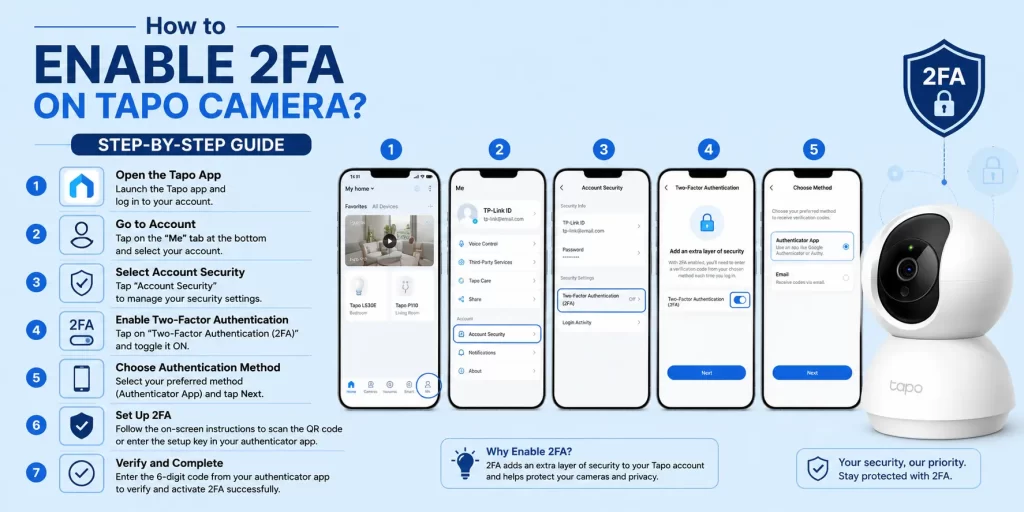
How to Enable 2FA on Tapo Camera?
To enable 2FA on Tapo camera, open the Tapo app, go to your account settings, enable Two-Step Verification and verify your identity using the code sent through the app notification or email. Once enabled, every new login on an unrecognized device requires an additional verification step, making unauthorized access much more difficult.
Introduction
If you use a Tapo security camera, your account protects more than just your login. It also protects your camera access, live view, recordings, smart home settings and personal privacy. Many people only use a password. That is no longer enough.
Every year, millions of online accounts are compromised because users rely only on passwords. Security cameras are especially important because they protect your home, office, or family. If someone gains access to your camera account, they may be able to view live footage or change important settings. That’s why adding a second layer of protection is one of the smartest things you can do.
I enabled it on my own Tapo account after receiving an unexpected Tapo login alert from a different city. Thankfully, nobody got access because the login required a verification code. Since then, I recommend enabling it for every Tapo user.
What is Two-Step Verification (2FA) on the Tapo App?
Two-step verification, also called 2FA, is an extra security feature.
Normally, logging in requires only your:
- Password
When you enable 2FA on Tapo camera, one extra verification step is added.
The login process becomes:
Step | What Happens |
Step 1 | Enter your Tapo email |
Step 2 | Enter your password |
Step 3 | Receive a verification request |
Step 4 | Approve login or enter the verification code |
This means nobody can access your account with only your password. This greatly improves tapo app login security.
Does 2FA Affect Camera Performance?
No. Two-step verification only protects your account during login. It does not slow down your camera, affect live streaming, recording quality, or notifications. Once you are signed in, your camera works exactly the same.
Why should you enable it?
Benefits include:
- Protects against stolen passwords
- Prevents unauthorized login
- Secures your smart home devices
- Reduces hacking attempts
- Protects your privacy
- Gives better control over new logins
If you use Tapo cameras inside your home, nursery, office or shop, enabling 2FA is highly recommended.
How to Enable 2FA on Tapo: Step-by-Step
The setup only takes a few minutes. Follow these steps carefully.
Step 1: Open the Tapo App
- Launch the latest version of the Tapo app.
- If you have not updated recently, update the app first.
You can also check our Tapo Firmware Update guide for keeping your devices updated.
Step 2: Log into Your TP-Link Account
- Sign in using your registered email.
- This is your TP-Link account login security account that manages all connected Tapo devices.
Tip: If you cannot find the Security option, update the Tapo app first. Older versions may display account settings differently.
Step 3: Open Account Settings
Tap:
- Me → Account → Security
Different app versions may show slightly different menus, but Security Settings are usually easy to find.
Step 4: Open Account Security Settings
Inside Security Settings, locate:
- Two-Step Verification
or
- Two-Factor Authentication
- Tap it.
Step 5: Enable Two-Step Verification
- Turn the feature ON.
- The app may ask you to confirm your password.
Step 6: Verify Your Identity
Now Tapo will send either:
- an app notification
- or a tapo email verification code
- Approve the request.
- Or enter the verification code.
Step 7: Mark Trusted Device (Optional)
After successful verification, you can choose:
- Trust this device
- This means you will not need verification every time on the same phone.
Step 8: Finish Setup
- Once completed, 2FA is active. Your account is now much more secure.
Setup Summary
Setting | Recommended |
Two-Step Verification | Enabled |
Trusted Device | Personal phone only |
Shared Devices | Don’t trust |
Public Devices | Never trust |
Verified |
Review Your Settings Before You Finish
Take a minute to check every setting. Confirm that your email is verified, two-step verification is turned on, and only your personal phone is marked as trusted. These small checks can prevent login problems later.
How Verification Codes Work (App Notification vs. Email)
Tapo supports different ways to verify your login. Understanding both methods helps avoid confusion.
Method 1: App Notification Verification
This is the fastest option. When someone logs in:
- A notification appears.
- Tap Approve.
- Login continues.
- This is called tapo app notification verification.
It is secure because only your trusted device receives the request.
Method 2: Email Verification
Sometimes Tapo sends a verification code to your registered email.
You simply:
- Open email
- Copy the code
- Enter it into the Tapo app
This process is known as tapo email verification.
Which Verification Method Should You Use?
If you use your camera every day, app notifications are usually faster because you only need one tap to approve the login. Email verification works well as a backup when notifications are unavailable.
Which method is better?
Verification Method | Speed | Security | Best For |
App Notification | Very Fast | Excellent | Daily users |
Email Code | Fast | Very Good | Backup option |
Both methods improve your tapo app login security.
What Happens After You Enable 2FA?
Once you enable 2FA on Tapo camera, every new login will require an extra verification step. However, Tapo also gives you the option to remember devices that you use regularly. This feature makes future logins faster without reducing security on your personal phone.
If you understand how this feature works, you can enjoy both convenience and strong tapo app login security. The key is to trust only devices that belong to you and remove old ones whenever you change or lose a phone.
Managing Trusted Devices
Trusted devices make logging in easier. When you trust a phone, Tapo remembers it. You usually won’t receive verification requests on every login. This is convenient. But use it carefully.
Trust only your own phone
Good examples:
- Your personal Android phone
- Your personal iPhone
Do NOT trust:
- Office phones
- Family tablets
- Friend’s phone
- Public devices
Common Mistake
Many users forget to remove old phones after upgrading to a new device. Always review your trusted devices whenever you replace or sell a phone. This reduces the chance of someone using an old device to access your account
When should you remove trusted devices?
Remove them if:
- You sell your phone.
- Your phone gets lost.
- You reset the device.
- Someone else used your account.
Managing tapo trusted devices regularly improves security.
Personal Example
Last year, I changed my phone. I forgot that the old phone was still listed as trusted. The first thing I did after logging in on my new phone was remove the old device. It took less than a minute but gave me peace of mind.
Why Am I Not Receiving the Verification Code?
Many users search for: ‘tapo verification code not received’
The most common reasons include:
- slow internet
- notification permissions disabled
- email delay
- spam folder
- outdated app
Usually, the problem is easy to solve. Try these fixes.
Problem | Solution |
Email delayed | Wait 5–10 minutes |
Spam folder | Check Spam or Junk |
Wrong email | Verify registered email |
Weak internet | Switch to Wi-Fi or mobile data |
App outdated | Update Tapo app |
Notification disabled | Enable app notifications |
Check the Most Common Causes First
Restart the App
- Close the app completely.
- Open it again.
- Request another code.
Check Your Email Address
- Many users accidentally use a different email.
- Always verify that you’re checking the correct mailbox.
Check Notification Permission
- If using tapo app notification verification, make sure notifications are allowed.
- Otherwise, the approval request never appears.
Try Another Internet Connection
Poor internet often delays verification. Switch between:
- Wi-Fi
- Mobile Data
Update the App
- Older versions sometimes have login issues. Updating often fixes them.
If your app behaves strangely, you can also read our Tapo App Not Working guide.
How to Turn Off Two-Step Verification
Some users ask:
‘how to turn off 2FA Tapo’
- The process is simple. Follow these steps.
- Open Tapo app.
- Go to Account.
- Open Security Settings.
- Select Two-Step Verification.
- Turn it OFF.
- Verify your identity.
- Save changes.
Only disable it if absolutely necessary. Leaving it enabled gives much better protection.
Other Ways to Keep Your Tapo Camera Account Secure
2FA is only one part of account protection. Here are additional security habits.
Use a Strong Password
Avoid passwords like:
- 123456
- password
- admin123
Instead, create something unique.
Check Login Activity
Review tapo login activity regularly. If you notice unknown devices:
- Change password
- Remove trusted devices
- Enable 2FA immediately
Update Firmware
- Firmware updates fix security bugs. Always keep your cameras updated. You can follow our Tapo Firmware Update guide.
Enable Privacy Mode
- When you’re home, consider enabling Tapo Camera Privacy Mode. The camera stops recording while privacy mode is active. Many users use this every evening.
Never Share Your Password
- Even family members should ideally have separate access.
- Avoid sharing your main account credentials.
Change Password Regularly
- Updating passwords every few months reduces security risks.
If needed, use our Tapo Password Reset guide.
Buy Cameras from Trusted Sellers
- Avoid second-hand devices without factory reset.
- Always reset used cameras before adding them.
Complete Initial Setup Properly
- If your camera is new, follow a proper Tapo Camera Setup Guide before enabling security features.
Security Checklist
Security Step | Recommended |
Enable 2FA | Yes |
Strong Password | Yes |
Firmware Updated | Yes |
Trusted Devices Reviewed | Yes |
Login Activity Checked | Yes |
Privacy Mode Used | Optional but Helpful |
Frequently Asked Questions
Does enabling 2FA protect the camera itself or just my account?
It mainly protects your Tapo account. Since your cameras are connected to that account, preventing unauthorized account access also helps protect your cameras, recordings and live view from unwanted access.
Will trusted devices need to verify every time they log in?
Usually no. Once you mark your personal phone as a trusted device, future logins on that device may not require another verification unless you sign out, reset the phone or change important account security settings.
What should I do if I get a verification code I didn’t request?
Treat it as a warning. Someone may know your password. Do not approve the request. Change your password immediately, review your trusted devices, check your tapo login activity and keep two-step verification enabled.
Can I use 2FA if I share my Tapo account with family members?
Yes, but every person using the account may need to complete verification when signing in on a new device. For better security, avoid sharing your main account password whenever possible and manage trusted devices carefully.
Is two-step verification available on the Kasa app too?
Some Kasa accounts support similar account protection features depending on the app version and TP-Link account settings. Availability may vary, so check the Security section inside your account settings for the latest options.
Final Thoughts
If you have not yet decided to enable 2FA on Tapo camera, now is the best time. The setup takes only a few minutes, but it can protect your account from unauthorized access, stolen passwords and privacy risks. Combined with a strong password, updated firmware, careful management of tapo trusted devices and regular checks of your tapo account security settings, two-step verification creates a much safer experience.
From personal experience, the small extra step during login quickly becomes a habit. After using it for some time, you hardly notice it, but you gain confidence knowing that your cameras, recordings and account are much better protected.
A secure camera starts with a secure account. Enabling 2FA is one of the easiest and most effective security upgrades every Tapo user should make.