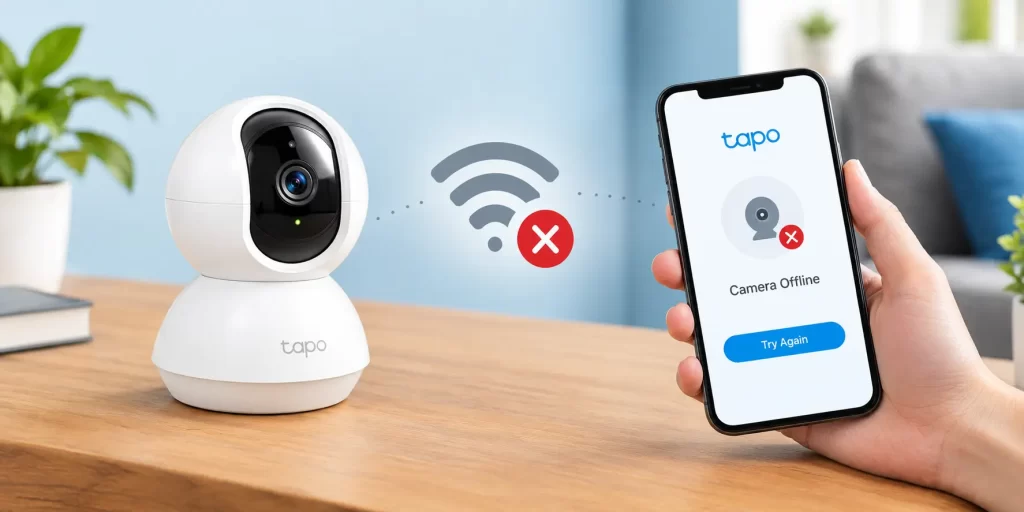
Before changing router settings or resetting your camera, complete these simple checks.
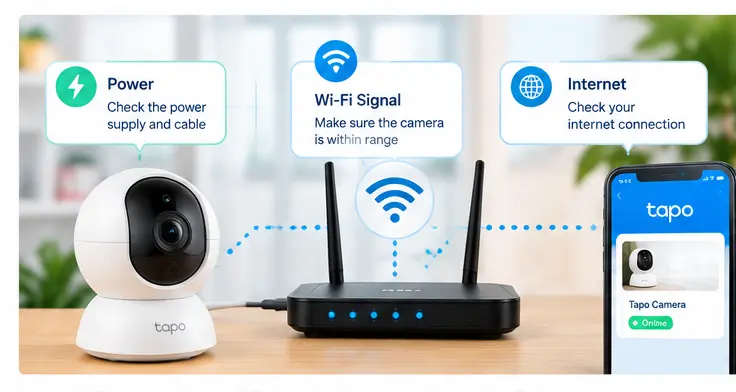
- Check the power: Confirm that the camera is switched on and its power cable or battery is secure.
- Check the internet: Open a website on another device connected to the same network.
- Restart the Tapo app: Close the app completely, reopen it and check the camera’s status.
- Check the camera’s indicator light: Compare its behavior with the user guide for your specific model.
- Inspect the Wi-Fi signal: If the camera is far from the router, temporarily test it closer to the router if practical.
- Check for network changes: Confirm whether you recently replaced the router or changed the Wi-Fi name or password.
Avoid interpreting the camera’s LED color without checking the model-specific manual. Indicator meanings can differ across products and firmware versions.
Follow these solutions in order, testing the camera after each step. This approach helps identify the cause without changing settings unnecessarily.
1. Restart the Camera and Router
A temporary network or device issue can sometimes interrupt the connection.
- Close the Tapo app. Restart the camera using the method recommended in its manual. For a powered camera, unplug it only if the manufacturer’s instructions permit this.
- Restart your router using its normal power procedure. Wait until the router has re-established its internet connection.
- Allow the camera time to reconnect, then open the Tapo app. If the camera works normally afterward, monitor it to see whether the problem returns.
Important: Restarting a device is different from factory resetting it. A restart normally preserves configuration, while a factory reset can erase settings and require setup again.
2. Improve the Camera’s Wi-Fi Signal
A camera may connect successfully during setup but disconnect repeatedly when the wireless signal is weak or inconsistent.
Try these steps:
- Temporarily move the camera closer to the router, where practical.
- Avoid placing the router behind large furniture or inside a closed cabinet.
- Reduce obstacles between the router and camera.
- Keep the camera away from sources of interference where possible.
- Consider a suitable Wi-Fi extender or mesh access point if the camera is installed far from the router.
If your model provides signal-strength information in the Tapo app, check Device Settings or Device Info for the relevant option. Some models expose an RSSI value, which measures received wireless signal strength. A more negative value generally indicates a weaker signal.
TP-Link describes RSSI checks and network testing as useful ways to investigate unstable Tapo connections. The available options may differ by device.
3. Check the Camera’s Power Supply
An unstable power source can cause unexpected restarts or intermittent operation that looks like a network problem.
For a plug-in camera:
- Check that the power cable is firmly connected.
- Inspect the cable and adapter for visible damage.
- Try a different suitable wall outlet.
- Use the original power adapter supplied with the camera, where applicable.
- Temporarily remove an extension cable if you suspect it is causing the issue.
- For a battery-powered camera, check the battery level and follow the model’s charging instructions.
Do not use an adapter with an unverified voltage or current rating. If the camera repeatedly reboots even with the correct power supply, further device-specific troubleshooting may be necessary.
4. Update the Tapo App and Camera Firmware
Outdated software can contribute to connection or compatibility problems. Updating is a reasonable troubleshooting step, although it will not fix every network issue.
To update the Tapo app:
- Open Google Play or the Apple App Store.
- Search for the Tapo app.
- Install an available update.
- Reopen the app and check the camera.
- To check camera firmware:
- Open the Tapo app.
- Select your camera if it is accessible.
- Open its settings.
- Look for a Firmware Update option. Its location may vary.
- Follow the on-screen instructions if an update is available.
Keep the camera powered during a firmware update and do not interrupt the process. If the camera is completely offline and cannot be updated through the app, first restore its connection or consult the product’s official support instructions.
5. Check Your Router’s Wi-Fi Settings
Router settings can sometimes prevent a camera from reconnecting reliably, especially after network changes.
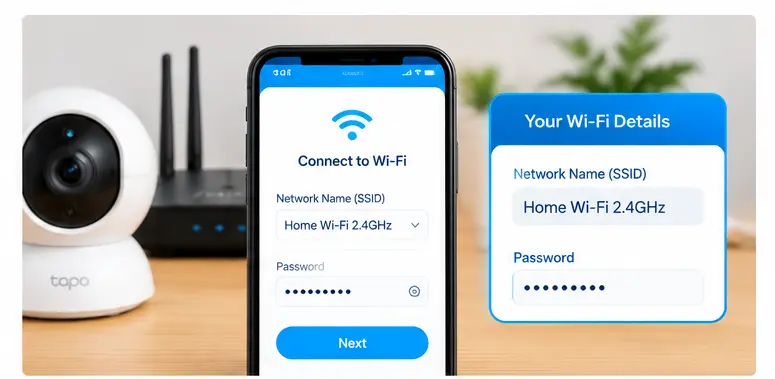
First, confirm that the camera supports the Wi-Fi band you are trying to use. Many Tapo camera models require a compatible 2.4 GHz network, while supported bands vary by model. Check your specific camera’s specifications rather than assuming every Tapo camera has identical wireless capabilities.
Next, review these settings if you are comfortable accessing your router:
- Wi-Fi name and password: Confirm that the camera is using the correct credentials.
- Guest network: Check whether the camera is on a guest network that isolates devices from one another.
- DHCP: Ensure the router can assign local IP addresses to connected devices.
- Wireless interference: If the 2.4 GHz band is congested, test an appropriate channel supported by your router and local wireless environment.
- Smart Connect or band steering: If your router combines wireless bands under one name, check the camera’s compatibility and router documentation before changing this feature.
Change one setting at a time, record the original value and test the connection afterward. Avoid disabling firewall or security features permanently just to keep the camera online.
6. Reconnect the Camera After Changing Your Router or Wi-Fi Password
If you recently replaced your router, changed your Wi-Fi password or renamed your network, your Tapo camera may still be trying to connect using its previous network details.
You have two main options:
- If the old network settings can safely be restored, using the same Wi-Fi name, password and compatible security configuration may allow some devices to reconnect automatically.
- Otherwise, use the supported network-change procedure for your specific camera model.
Some Tapo models offer a Switch Wi-Fi option in the app, but this feature is not available on every model or firmware version. It may also require the camera to be online before you can use it. If your camera is already offline, follow the relevant model’s reconfiguration instructions.
7. Check Whether the Camera Is Offline Locally or Only Remotely
This test helps distinguish a local network problem from an internet or cloud-access problem.
- Connect your phone to the same home Wi-Fi network used by the camera.
- Open the Tapo app and try to access the camera.
- If the camera works locally but not when your phone uses mobile data, investigate internet access, remote connectivity and possible network restrictions.
- If the camera is unavailable even on the home network, focus first on its power, Wi-Fi connection and router configuration.
This is a diagnostic clue, not a guaranteed diagnosis. The app may still rely on cloud services for certain functions, so behavior can vary.
If you suspect a firewall, filtering service or VPN-related issue, review its settings carefully. Only conduct temporary, controlled tests that you understand and restore your normal security protections afterward.
8. Test the Camera on Another Compatible Network
If the earlier fixes do not help, a different network can help determine whether the problem is specific to your router. Where supported, try setting up or testing the camera using another compatible Wi-Fi network, such as a mobile hotspot configured for the camera’s supported band.
- The camera works on the alternative network: Your home router, wireless coverage or network configuration may be contributing to the issue.
- The camera also disconnects on the alternative network: Investigate the camera’s power, firmware, hardware and model-specific requirements.
A hotspot test may require reconfiguration and not all cameras or phone hotspots support the same bands or security settings. Check your model’s instructions before changing the camera’s network.
A factory reset may be appropriate if the camera cannot reconnect after a network change, its configuration is corrupted or recommended troubleshooting steps have failed.
However, do not start with a factory reset. It can remove network and device settings and you may need to configure the camera again.
Tapo camera reset instructions :
- Check that you know your Wi-Fi network name and password.
- Confirm that you can access the Tapo account used to manage the device.
- Find the reset instructions for your exact model.
- Understand that saved configuration may need to be restored.
- The reset button, reset duration and indicator-light sequence can vary. Follow the official user guide rather than relying on a generic instruction that may not match your camera.
After the reset, use the Tapo app to add and configure the camera again. Select the correct model, follow the instructions and confirm that it connects to the intended network.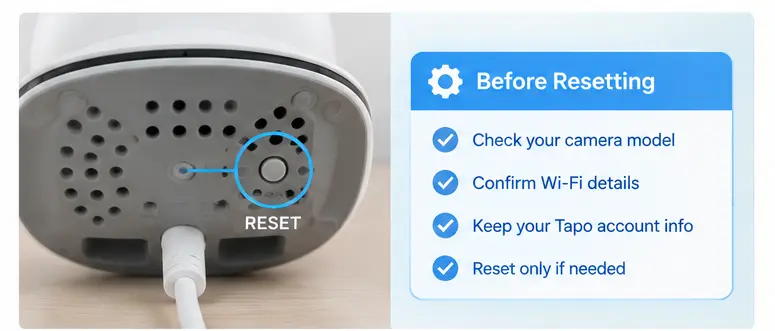
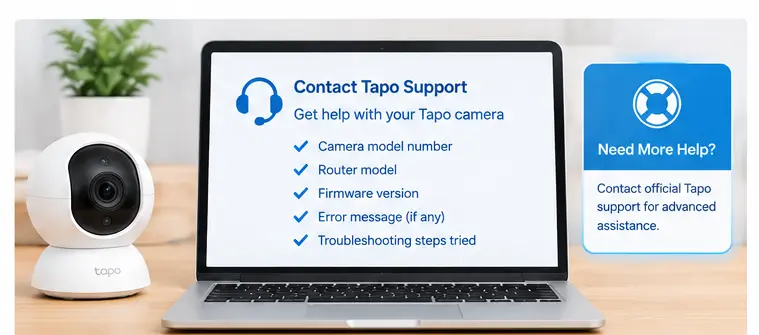
Contact TP-Link Support if the camera continues to disconnect after the relevant troubleshooting steps, cannot complete setup, repeatedly restarts with the correct power supply or appears to have a hardware fault.
Before contacting support, prepare:
- The exact camera model and hardware version.
- The router model and supported Wi-Fi configuration.
- The Tapo app and camera firmware versions, if available.
- A description of the camera’s indicator-light behavior.
- The frequency and timing of disconnections.
- The troubleshooting steps you have already tried and their results.
Avoid sharing your Wi-Fi password or other sensitive account credentials in a public forum. Use official support channels for account-specific assistance.